> ## Documentation Index
> Fetch the complete documentation index at: https://datagen.dev/llms.txt
> Use this file to discover all available pages before exploring further.
# Sandbox Environments
> Bake a base image, packages and internal registries into a reusable image so agents, contexts and apps start with everything they need installed
Every agent run, context build, and app runs its code in an isolated DataGen
**sandbox**. A **Sandbox Environment** is a reusable recipe for that sandbox: a
base image plus `apt` / `pip` / `uv` / `npm` packages, optional internal package
registries, and CPU / memory / disk sizing.
DataGen bakes the recipe into an image in the background. Anything bound to the
environment then starts from the baked image, so nothing is installed at run
time and every run sees the same package versions.
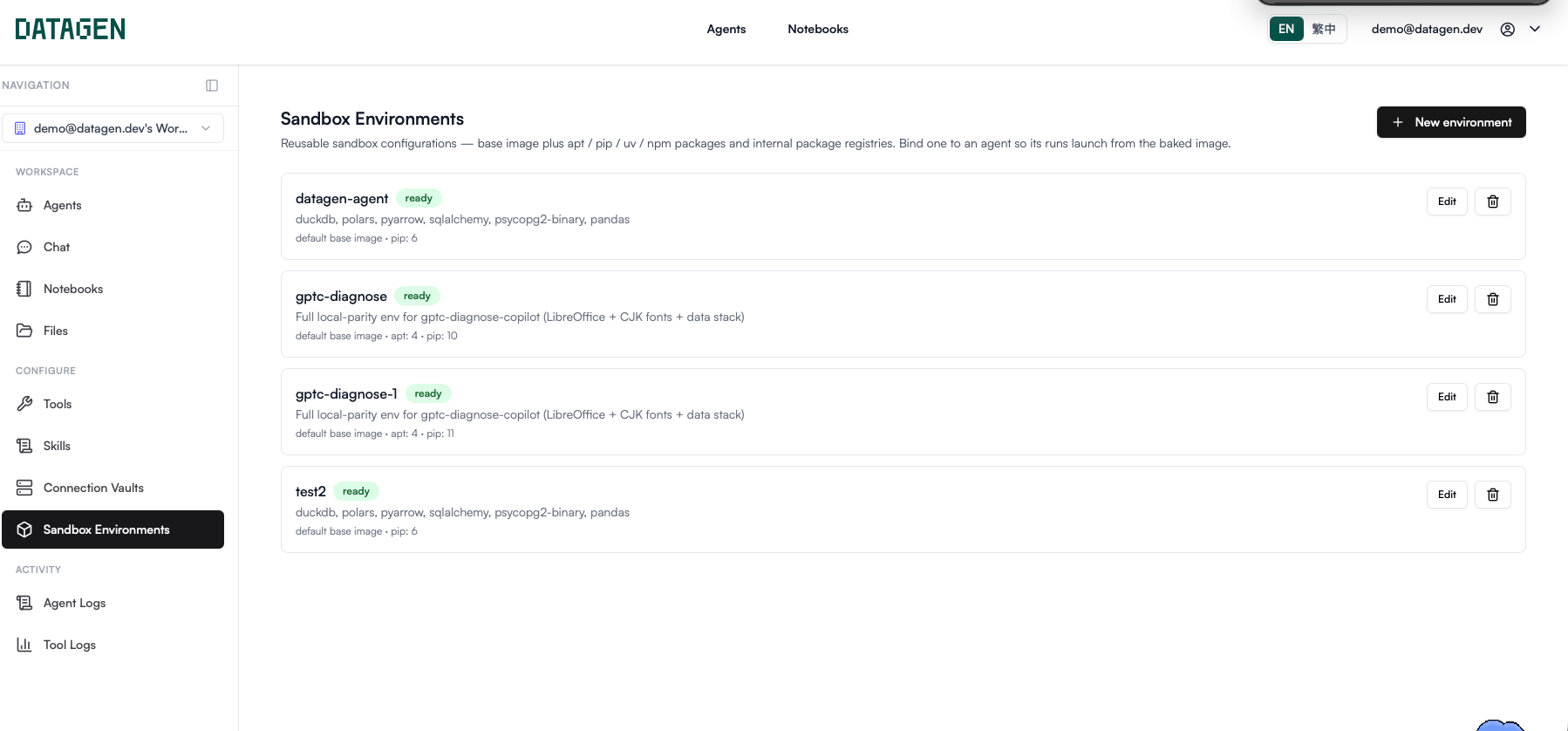 ## Open Sandbox Environments
Open the **More** menu on the left rail and choose **Sandbox Environments**. Use
**Pin to sidebar** to keep it on the rail.
If **Sandbox Environments** is not in the menu, the feature is not enabled for
your account. Agents then run on the standard image. Contact DataGen to enable
it.
Admins and Builders can create, edit, and delete environments. Every member can
view them.
***
## Create an environment
Click **New environment**.
Pick a template under **Start from template (optional)**. It pre-fills the
packages; you can edit anything before creating.
Enter a **Name**, then fill in the package fields you need.
Click **Create**. The build starts in the background and the card shows its
progress.
## Open Sandbox Environments
Open the **More** menu on the left rail and choose **Sandbox Environments**. Use
**Pin to sidebar** to keep it on the rail.
If **Sandbox Environments** is not in the menu, the feature is not enabled for
your account. Agents then run on the standard image. Contact DataGen to enable
it.
Admins and Builders can create, edit, and delete environments. Every member can
view them.
***
## Create an environment
Click **New environment**.
Pick a template under **Start from template (optional)**. It pre-fills the
packages; you can edit anything before creating.
Enter a **Name**, then fill in the package fields you need.
Click **Create**. The build starts in the background and the card shows its
progress.
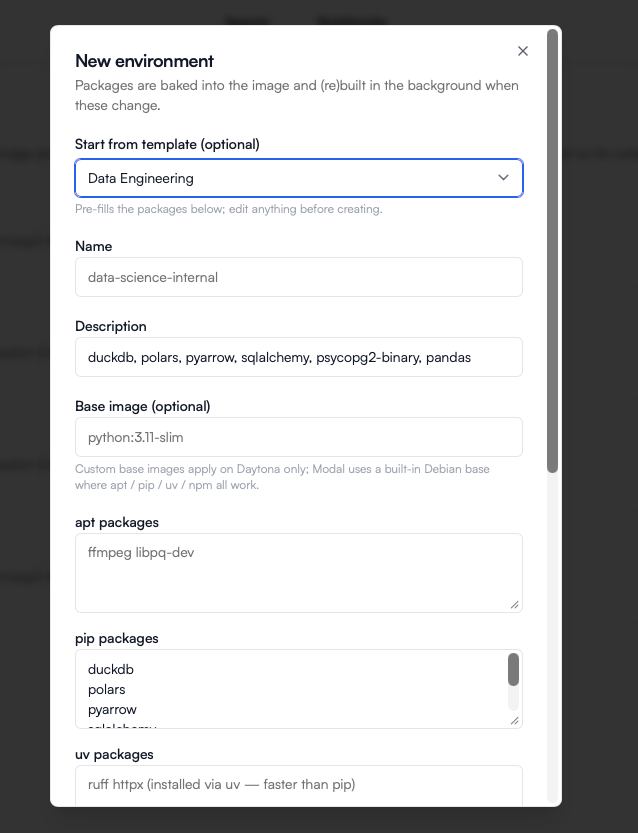 ### Built-in templates
| Template | pip packages |
| - | - |
| **Data Science** | `pandas`, `numpy`, `scipy`, `scikit-learn`, `matplotlib`, `seaborn`, `polars`, `pyarrow`, `openpyxl`, `statsmodels` |
| **Data Engineering** | `duckdb`, `polars`, `pyarrow`, `sqlalchemy`, `psycopg2-binary`, `pandas` |
| **Web Scraping & HTTP** | `requests`, `httpx`, `beautifulsoup4`, `lxml` |
| **Documents & Files** | `openpyxl`, `python-docx`, `pypdf`, `pillow`, `markdown`, `pandas` |
A template is copied into the new environment. Editing the environment later
never changes the template, and vice versa.
### Fields
| Field | What it does |
| - | - |
| **Name** | Required. Shown in every environment picker. |
| **Description** | Optional. Shown on the card; templates fill it with the package list. |
| **Base image (optional)** | A custom base image such as `python:3.11-slim`. Applies on Daytona only; Modal uses a built-in Debian base where `apt` / `pip` / `uv` / `npm` all work. |
| **apt packages** | System packages, e.g. `ffmpeg libpq-dev`. |
| **pip packages** | Python packages installed with pip. |
| **uv packages** | Python packages installed with uv (faster than pip). |
| **npm packages** | Node packages. |
| **Internal registries (optional)** | **pip / uv index URL**, **npm registry URL**, and **apt sources.list** for installing from a private mirror or artifact repository. URLs must be `http://` or `https://`. |
| **Resources (optional)** | **CPU cores** (1 or 2), **Memory** (1 GB or 2 GB), **Disk** (2 GB or 5 GB, Daytona only). **Default** uses the deployment default shown in the dropdown. |
| **Workspace default** | Marks this environment as the workspace default. It is listed first and labeled **(default)** in pickers. |
Package lists accept spaces, commas, or new lines as separators. Pin versions
without spaces, for example `pandas==2.2.2`, `psycopg[binary]`, or
`@scope/tool@1.4.0`.
**Modal vs Daytona.** DataGen Cloud runs sandboxes on Modal; on-prem
deployments use Daytona. On Modal the **Base image** and **Disk** settings are
ignored. On Daytona, resources are part of the image itself, so changing them
rebuilds the image.
***
## Build status
DataGen builds the image whenever the build inputs change -- base image,
packages, registries, or resources. Each card shows an **agent** status badge:
| Status | Meaning |
| - | - |
| **pending** | Queued; the build is about to start. |
| **building** | The image is being built. A progress bar shows elapsed time. |
| **ready** | The image is built. Runs can start from it. |
| **failed** | The build failed. The card shows `build failed: ` -- usually a misspelled package or a version that does not exist. Edit the environment to fix it; saving starts a new build. |
Notebook apps use a separate **notebook** image built from the same recipe. Its
badge appears once it has been requested; use **Build notebook image** (or
**Retry notebook build**) on the card. Notebook sandboxes always get at least
10 GB of disk.
The **App images** table below the list shows dependency images each custom app
bakes when you save it. They are managed by the app; you can delete one that no
live version boots from.
***
## How agents, contexts and apps use an environment
| Where | Setting | If the image is not ready |
| - | - | - |
| **Agent** | **Sandbox environment** card -> **Environment**, then **Save environment** | The run **refuses to start** with `Sandbox environment image is not ready (build status: ...)`. |
| **Context builder** | Context settings -> **Sandbox environment** | The builder starts from the standard image until the build finishes. Changes apply the next time the builder session starts cold. |
| **Notebook app** | App Builder -> **Sandbox** | Binding requires the environment's **notebook** image to be ready. |
| **Custom app** | App Builder -> **Sandbox** | Changing it rebuilds the app's dependency image on the new environment, then recreates the sandbox. |
| **Data builder** | Data -> **Builder configuration** -> **Sandbox environment** | -- |
Leaving an agent on **Default (standard image)** runs it on DataGen's standard
image.
***
## Gotchas
Every change to packages, registries, base image, or resources starts a
rebuild, and agents bound to the environment refuse to run until it is
**ready** again. Make edits when no scheduled run is due, or wait for the
badge to turn green.
Agents that use it fall back to the standard image -- without its packages.
Rebind them to another environment first if their code imports anything
from it.
Code can still `pip install` inside a sandbox when it has outbound network,
but it pays the install on every run and can drift between runs. Bake
anything used more than once.
Many binary wheels, such as `psycopg2-binary`, ship only for glibc. On a musl
base, choose packages that publish musl wheels (for example `psycopg[binary]`).
## Next
Choose the agent runtime, pin its version, and route it to your own LLM gateway.
A worked example using the Data Engineering template.
This documentation is built and hosted on [Mintlify](https://mintlify.com), a developer documentation platform.
### Built-in templates
| Template | pip packages |
| - | - |
| **Data Science** | `pandas`, `numpy`, `scipy`, `scikit-learn`, `matplotlib`, `seaborn`, `polars`, `pyarrow`, `openpyxl`, `statsmodels` |
| **Data Engineering** | `duckdb`, `polars`, `pyarrow`, `sqlalchemy`, `psycopg2-binary`, `pandas` |
| **Web Scraping & HTTP** | `requests`, `httpx`, `beautifulsoup4`, `lxml` |
| **Documents & Files** | `openpyxl`, `python-docx`, `pypdf`, `pillow`, `markdown`, `pandas` |
A template is copied into the new environment. Editing the environment later
never changes the template, and vice versa.
### Fields
| Field | What it does |
| - | - |
| **Name** | Required. Shown in every environment picker. |
| **Description** | Optional. Shown on the card; templates fill it with the package list. |
| **Base image (optional)** | A custom base image such as `python:3.11-slim`. Applies on Daytona only; Modal uses a built-in Debian base where `apt` / `pip` / `uv` / `npm` all work. |
| **apt packages** | System packages, e.g. `ffmpeg libpq-dev`. |
| **pip packages** | Python packages installed with pip. |
| **uv packages** | Python packages installed with uv (faster than pip). |
| **npm packages** | Node packages. |
| **Internal registries (optional)** | **pip / uv index URL**, **npm registry URL**, and **apt sources.list** for installing from a private mirror or artifact repository. URLs must be `http://` or `https://`. |
| **Resources (optional)** | **CPU cores** (1 or 2), **Memory** (1 GB or 2 GB), **Disk** (2 GB or 5 GB, Daytona only). **Default** uses the deployment default shown in the dropdown. |
| **Workspace default** | Marks this environment as the workspace default. It is listed first and labeled **(default)** in pickers. |
Package lists accept spaces, commas, or new lines as separators. Pin versions
without spaces, for example `pandas==2.2.2`, `psycopg[binary]`, or
`@scope/tool@1.4.0`.
**Modal vs Daytona.** DataGen Cloud runs sandboxes on Modal; on-prem
deployments use Daytona. On Modal the **Base image** and **Disk** settings are
ignored. On Daytona, resources are part of the image itself, so changing them
rebuilds the image.
***
## Build status
DataGen builds the image whenever the build inputs change -- base image,
packages, registries, or resources. Each card shows an **agent** status badge:
| Status | Meaning |
| - | - |
| **pending** | Queued; the build is about to start. |
| **building** | The image is being built. A progress bar shows elapsed time. |
| **ready** | The image is built. Runs can start from it. |
| **failed** | The build failed. The card shows `build failed: ` -- usually a misspelled package or a version that does not exist. Edit the environment to fix it; saving starts a new build. |
Notebook apps use a separate **notebook** image built from the same recipe. Its
badge appears once it has been requested; use **Build notebook image** (or
**Retry notebook build**) on the card. Notebook sandboxes always get at least
10 GB of disk.
The **App images** table below the list shows dependency images each custom app
bakes when you save it. They are managed by the app; you can delete one that no
live version boots from.
***
## How agents, contexts and apps use an environment
| Where | Setting | If the image is not ready |
| - | - | - |
| **Agent** | **Sandbox environment** card -> **Environment**, then **Save environment** | The run **refuses to start** with `Sandbox environment image is not ready (build status: ...)`. |
| **Context builder** | Context settings -> **Sandbox environment** | The builder starts from the standard image until the build finishes. Changes apply the next time the builder session starts cold. |
| **Notebook app** | App Builder -> **Sandbox** | Binding requires the environment's **notebook** image to be ready. |
| **Custom app** | App Builder -> **Sandbox** | Changing it rebuilds the app's dependency image on the new environment, then recreates the sandbox. |
| **Data builder** | Data -> **Builder configuration** -> **Sandbox environment** | -- |
Leaving an agent on **Default (standard image)** runs it on DataGen's standard
image.
***
## Gotchas
Every change to packages, registries, base image, or resources starts a
rebuild, and agents bound to the environment refuse to run until it is
**ready** again. Make edits when no scheduled run is due, or wait for the
badge to turn green.
Agents that use it fall back to the standard image -- without its packages.
Rebind them to another environment first if their code imports anything
from it.
Code can still `pip install` inside a sandbox when it has outbound network,
but it pays the install on every run and can drift between runs. Bake
anything used more than once.
Many binary wheels, such as `psycopg2-binary`, ship only for glibc. On a musl
base, choose packages that publish musl wheels (for example `psycopg[binary]`).
## Next
Choose the agent runtime, pin its version, and route it to your own LLM gateway.
A worked example using the Data Engineering template.
This documentation is built and hosted on [Mintlify](https://mintlify.com), a developer documentation platform.