> ## Documentation Index
> Fetch the complete documentation index at: https://datagen.dev/llms.txt
> Use this file to discover all available pages before exploring further.
# Add MCP Servers
> Connect external services like Gmail, Linear, and Slack to your agents
MCP servers give your agents access to external services -- Gmail, Linear, Slack, HubSpot, and more. Connect them once through DataGen, and they work both locally in Claude Code and in deployed agents.
## Prerequisites: DataGen MCP Must Be Connected
Before adding any external MCP servers, make sure the DataGen MCP server itself is connected to your Claude Code.
If you ran `/datagen:setup` earlier, this is already configured. To verify:
```bash theme={null}
claude mcp list
```
Look for `datagen` in the output. If it's not there, add it manually:
```bash theme={null}
claude mcp add datagen --transport http https://mcp.datagen.dev/mcp -e DATAGEN_API_KEY
```
This requires `DATAGEN_API_KEY` to be set in your environment. If you haven't authenticated yet, run `datagen login` or `/datagen:setup` first.
***
## Add via Claude Code
Run the guided skill in Claude Code:
```
/datagen:add-mcps
```
This walks you through:
Select from common services (Gmail, Slack, Linear, GitHub, HubSpot, etc.) or provide a custom MCP server URL.
The plugin checks DataGen's built-in server templates first. If a match is found, it installs automatically with OAuth.
For OAuth-based servers, a browser window opens for authentication. The plugin monitors the flow and confirms when complete.
Once connected, the plugin shows all new tools available from the service (e.g., `mcp_Linear_list_issues`, `mcp_Gmail_gmail_send_email`).
You can also add a server directly by asking Claude:
```
"Add Linear MCP to DataGen: https://mcp.linear.app/sse"
```
Claude will call `addRemoteMcpServer`, handle the OAuth flow, and confirm the connection.
***
## Add via the Web UI
### Browse the MCP Registry
Navigate to **MCP Servers** in the DataGen sidebar and click the **MCP Registry** tab.
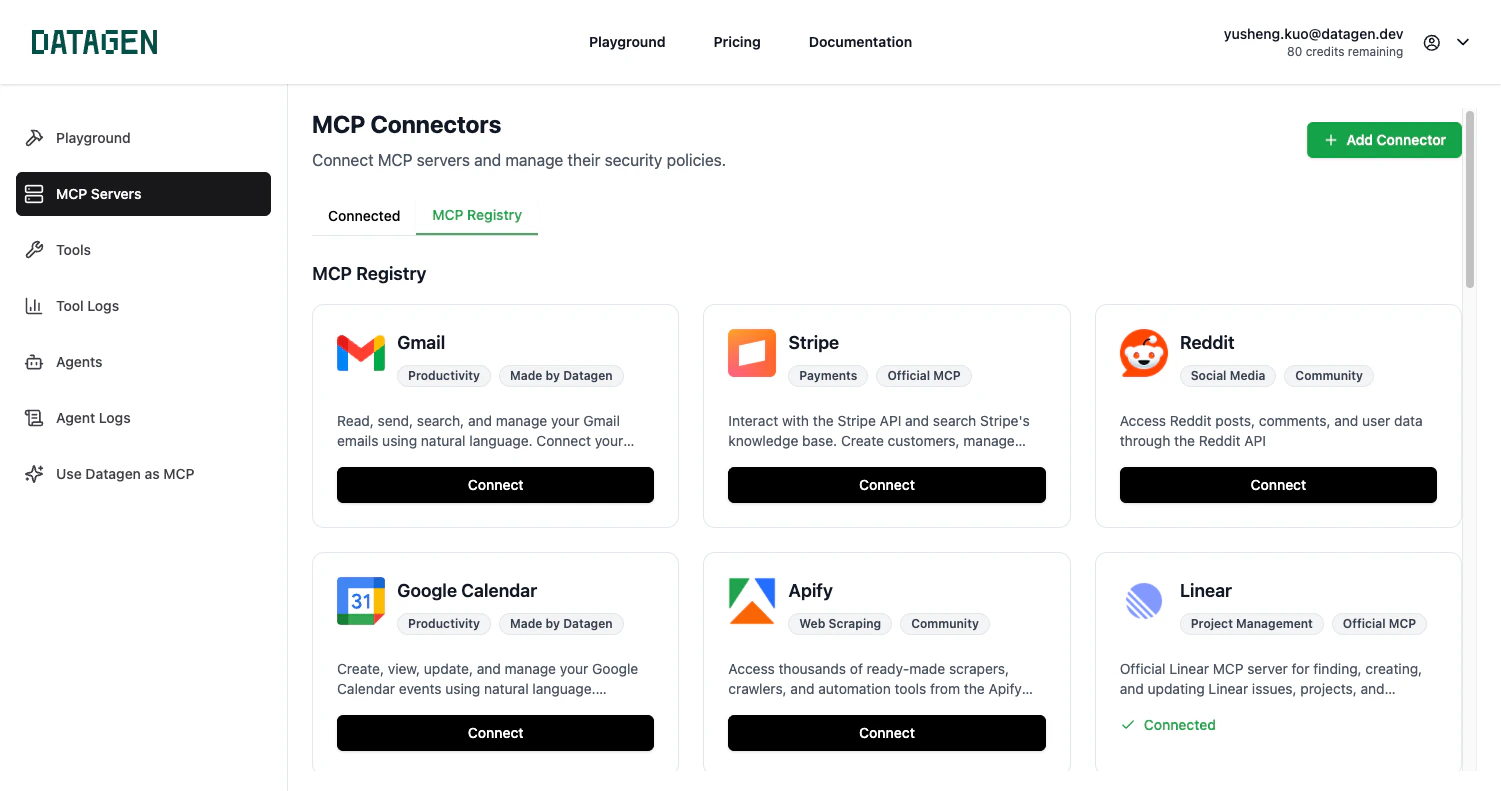 Click **Connect** on any server to start the OAuth flow.
### Add a Custom MCP Server
For servers not in the registry, click **Add Connector**.
Click **Connect** on any server to start the OAuth flow.
### Add a Custom MCP Server
For servers not in the registry, click **Add Connector**.
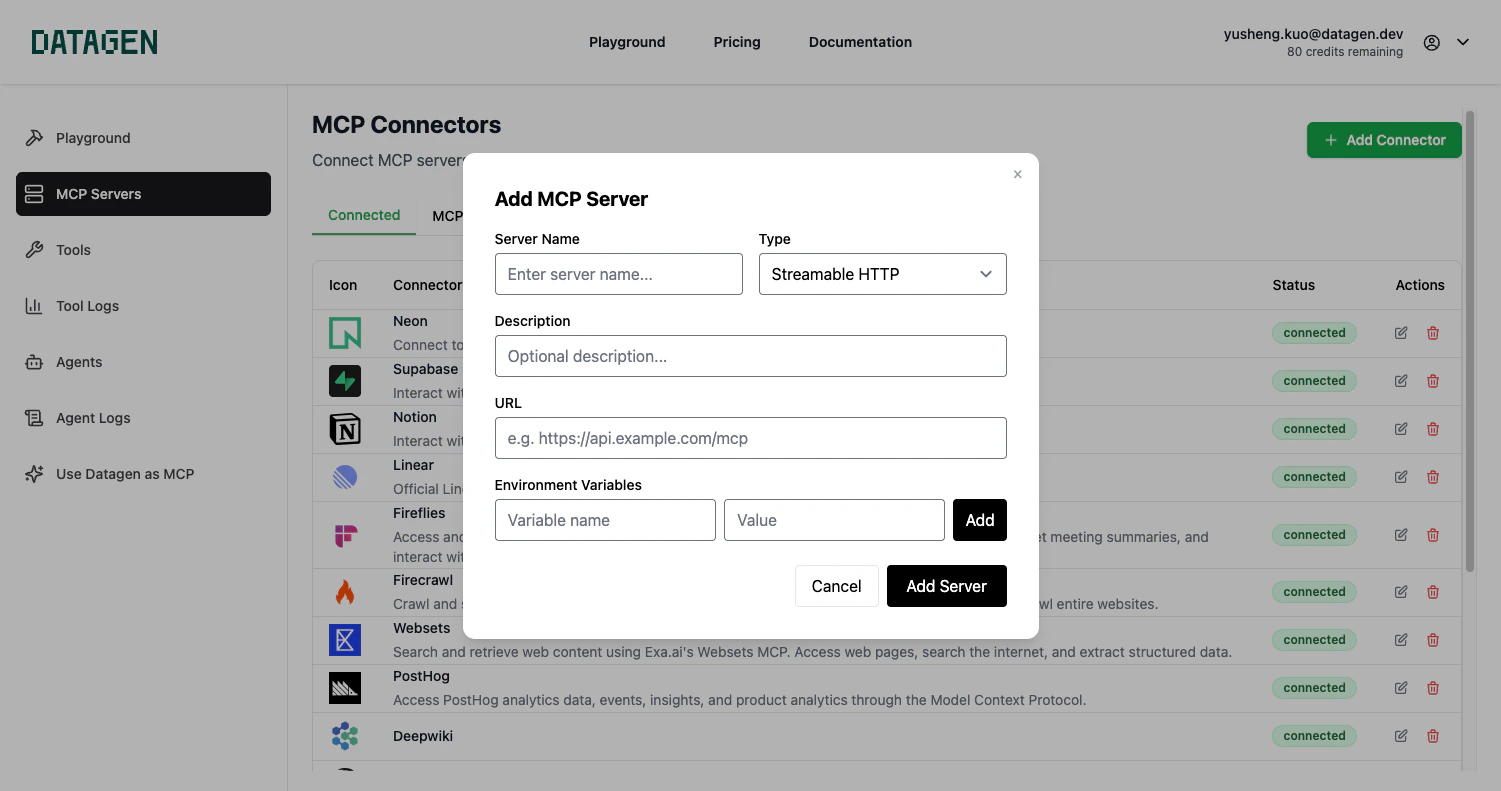 Fill in:
* **Server Name** -- Display name (e.g., "Linear")
* **Type** -- Transport method: Streamable HTTP, SSE, or STDIO
* **URL** -- The MCP server endpoint
* **Environment Variables** -- Optional variables the server needs
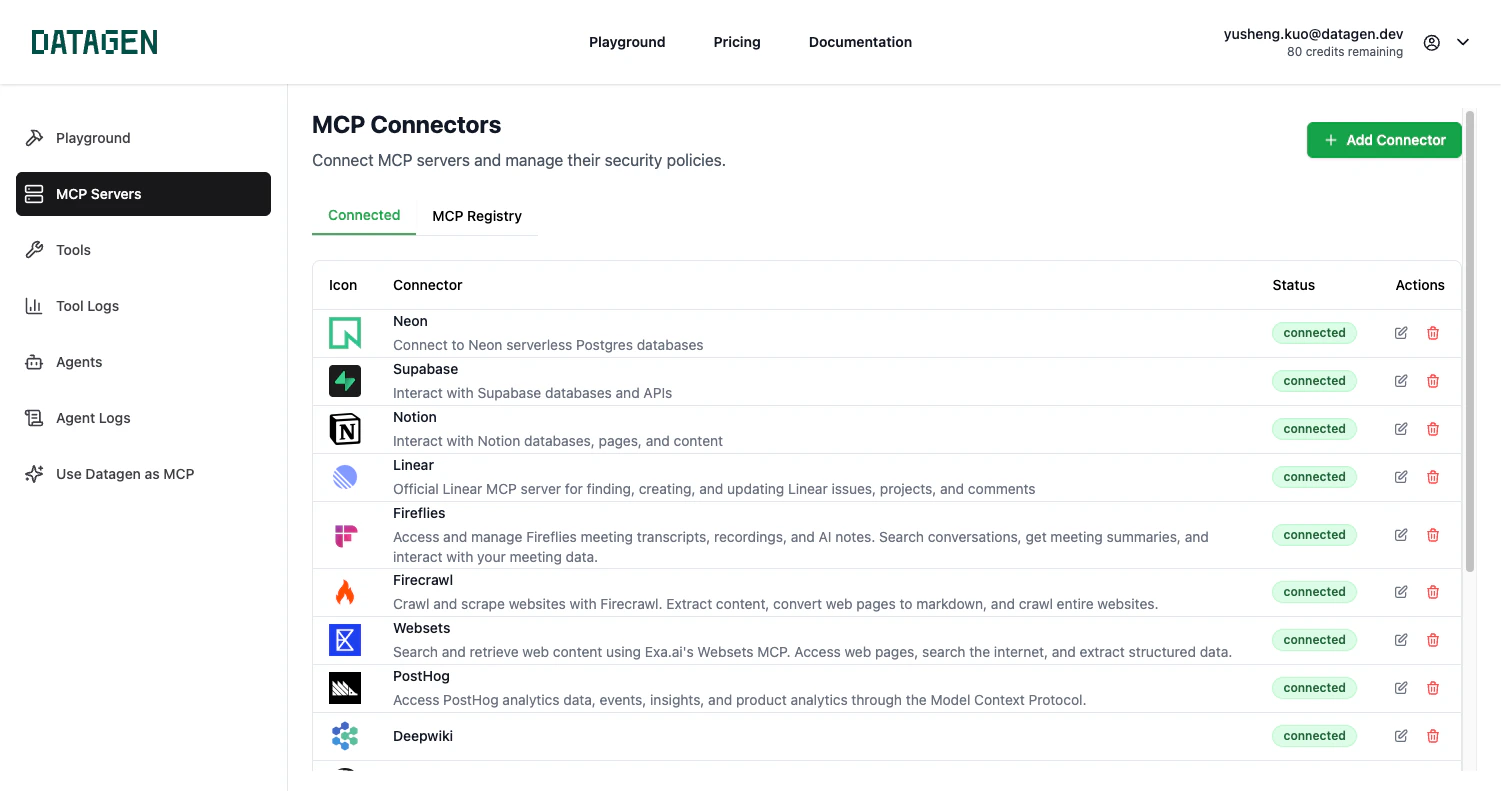
### View Connected Servers
The **Connected** tab shows all your active MCP servers.
Fill in:
* **Server Name** -- Display name (e.g., "Linear")
* **Type** -- Transport method: Streamable HTTP, SSE, or STDIO
* **URL** -- The MCP server endpoint
* **Environment Variables** -- Optional variables the server needs
### View Connected Servers
The **Connected** tab shows all your active MCP servers.
 ***
## How MCP Works with Agents
When you connect an MCP server through DataGen, the tools become available in two places:
1. **Locally** -- Use tools directly in Claude Code conversations
2. **Deployed agents** -- Your agents and custom tools can call the same MCP tools in production
Connect once, use everywhere. No separate auth setup for each agent.
```python theme={null}
from datagen_sdk import DatagenClient
client = DatagenClient()
# Same MCP tools work locally and in deployed agents
issues = client.execute_tool("mcp_Linear_list_issues", {
"status": "in_progress",
"limit": 10
})
```
***
## Commonly Used MCPs
### Official Remote MCP Servers
* **Notion** -- `https://mcp.notion.com/mcp` -- Workspace, content management, databases
* **Linear** -- `https://mcp.linear.app/sse` -- Issue tracking, project management
* **Neon** -- `https://mcp.neon.tech` -- Cloud Postgres database management
### MCP Providers
**URL**: [composio.dev](https://mcp.composio.dev/)
Use **HTTP** transport. Popular servers:
* **Gmail** -- `https://mcp.composio.dev/gmail`
* **Outlook** -- `https://mcp.composio.dev/outlook`
* **Dropbox** -- `https://mcp.composio.dev/dropbox`
**URL**: [klavis.ai](https://www.klavis.ai/)
Production-ready with hosted authentication:
* **Gmail** -- `https://www.klavis.ai/mcp-server-connections/gmail`
* **GitHub** -- `https://www.klavis.ai/mcp-server-connections/github`
* **Slack** -- `https://www.klavis.ai/mcp-server-connections/slack`
* **Jira** -- `https://www.klavis.ai/mcp-server-connections/jira`
* **Google Drive** -- `https://www.klavis.ai/mcp-server-connections/google-drive`
**URL**: [smithery.ai](https://smithery.ai/)
6,800+ MCP servers. Both local and hosted options.
### Community & Custom MCPs
* **Open Source** -- [github.com/modelcontextprotocol/servers](https://github.com/modelcontextprotocol/servers)
* **Custom** -- Use the MCP SDK to build integrations for proprietary systems
***
## Managing Connections
### Reconnect Expired Tokens
Some OAuth tokens expire. To reconnect:
1. Check status with `checkRemoteMcpOauthStatus`
2. Re-authenticate with `ReAuthRemoteMcpServer`
### Update a Server
Use `updateRemoteMcpServer` to change the URL or credentials for a connected server.
***
## Troubleshooting
1. Clear browser cookies for the OAuth provider
2. Try an incognito/private window
3. Check if your organization blocks OAuth for the service
4. Re-run the OAuth flow
1. Wait 1-2 minutes for synchronization
2. Use `searchTools` to discover newly available tools
3. Verify `checkRemoteMcpOauthStatus` shows "completed"
4. Restart Claude Desktop if needed
1. Verify you granted all required permissions during OAuth
2. Some services need admin approval for certain scopes
3. Re-run the OAuth flow with broader permissions
***
## How MCP Works with Agents
When you connect an MCP server through DataGen, the tools become available in two places:
1. **Locally** -- Use tools directly in Claude Code conversations
2. **Deployed agents** -- Your agents and custom tools can call the same MCP tools in production
Connect once, use everywhere. No separate auth setup for each agent.
```python theme={null}
from datagen_sdk import DatagenClient
client = DatagenClient()
# Same MCP tools work locally and in deployed agents
issues = client.execute_tool("mcp_Linear_list_issues", {
"status": "in_progress",
"limit": 10
})
```
***
## Commonly Used MCPs
### Official Remote MCP Servers
* **Notion** -- `https://mcp.notion.com/mcp` -- Workspace, content management, databases
* **Linear** -- `https://mcp.linear.app/sse` -- Issue tracking, project management
* **Neon** -- `https://mcp.neon.tech` -- Cloud Postgres database management
### MCP Providers
**URL**: [composio.dev](https://mcp.composio.dev/)
Use **HTTP** transport. Popular servers:
* **Gmail** -- `https://mcp.composio.dev/gmail`
* **Outlook** -- `https://mcp.composio.dev/outlook`
* **Dropbox** -- `https://mcp.composio.dev/dropbox`
**URL**: [klavis.ai](https://www.klavis.ai/)
Production-ready with hosted authentication:
* **Gmail** -- `https://www.klavis.ai/mcp-server-connections/gmail`
* **GitHub** -- `https://www.klavis.ai/mcp-server-connections/github`
* **Slack** -- `https://www.klavis.ai/mcp-server-connections/slack`
* **Jira** -- `https://www.klavis.ai/mcp-server-connections/jira`
* **Google Drive** -- `https://www.klavis.ai/mcp-server-connections/google-drive`
**URL**: [smithery.ai](https://smithery.ai/)
6,800+ MCP servers. Both local and hosted options.
### Community & Custom MCPs
* **Open Source** -- [github.com/modelcontextprotocol/servers](https://github.com/modelcontextprotocol/servers)
* **Custom** -- Use the MCP SDK to build integrations for proprietary systems
***
## Managing Connections
### Reconnect Expired Tokens
Some OAuth tokens expire. To reconnect:
1. Check status with `checkRemoteMcpOauthStatus`
2. Re-authenticate with `ReAuthRemoteMcpServer`
### Update a Server
Use `updateRemoteMcpServer` to change the URL or credentials for a connected server.
***
## Troubleshooting
1. Clear browser cookies for the OAuth provider
2. Try an incognito/private window
3. Check if your organization blocks OAuth for the service
4. Re-run the OAuth flow
1. Wait 1-2 minutes for synchronization
2. Use `searchTools` to discover newly available tools
3. Verify `checkRemoteMcpOauthStatus` shows "completed"
4. Restart Claude Desktop if needed
1. Verify you granted all required permissions during OAuth
2. Some services need admin approval for certain scopes
3. Re-run the OAuth flow with broader permissions