> ## Documentation Index
> Fetch the complete documentation index at: https://datagen.dev/llms.txt
> Use this file to discover all available pages before exploring further.
# Alternative Setup Methods
> Set up DataGen with CLI, Direct Connect, Claude Desktop, or Cursor
**Using Claude Code?** The fastest path is the [DataGen Plugin](/guide/quickstart) -- it handles authentication, MCP configuration, CLI, and SDK setup automatically.
## Method 1: Direct Connect (Claude Pro/Max)
Connect directly from Claude's web interface without installing anything.
* Go to [claude.ai](https://claude.ai) and sign in
* Click your profile icon then **Settings**
* Navigate to **Connectors** in the sidebar
* Scroll to the bottom and click **"Add custom connector"**
* Enter the MCP Name: `DataGen`
* Enter the MCP server URL: `https://mcp.datagen.dev/mcp`
* Click **"Add"** to complete the connection
DataGen tools are now available in Claude web, mobile, and desktop.
Works on Claude web interface, mobile apps, and Claude Desktop for Pro, Max, Team, and Enterprise subscribers.
***
## Method 2: DataGen CLI
Works with Claude Code, Claude Desktop, and other MCP clients.
```bash theme={null}
curl -fsSL https://cli.datagen.dev/install.sh | sh
```
```bash theme={null}
datagen login
```
This opens a browser for OAuth and saves your API key to your shell profile.
```bash theme={null}
datagen mcp
```
Follow the prompts to configure Claude Code, Claude Desktop, or other clients.
Don't have an API key? [Sign up at datagen.dev](https://datagen.dev) to get one.
***
## Method 3: Manual Configuration (Claude Desktop)
* Install and Launch [Claude Desktop](https://claude.ai/download)
* Click the Settings icon -> **Developer** -> **Edit Config**
Copy and paste this into your Claude Desktop config:
```json theme={null}
{
"mcpServers": {
"datagen": {
"command": "npx",
"args": [
"mcp-remote",
"https://mcp.datagen.dev/mcp"
]
}
}
}
```
Close and reopen Claude Desktop to load the new MCP connection.
Requires Node.js/npm installed on your system for the `npx` command.
***
## Method 4: Claude Code CLI
```bash theme={null}
claude mcp add --transport http datagen https://mcp.datagen.dev/mcp
claude mcp list
```
## Method 5: Cursor IDE
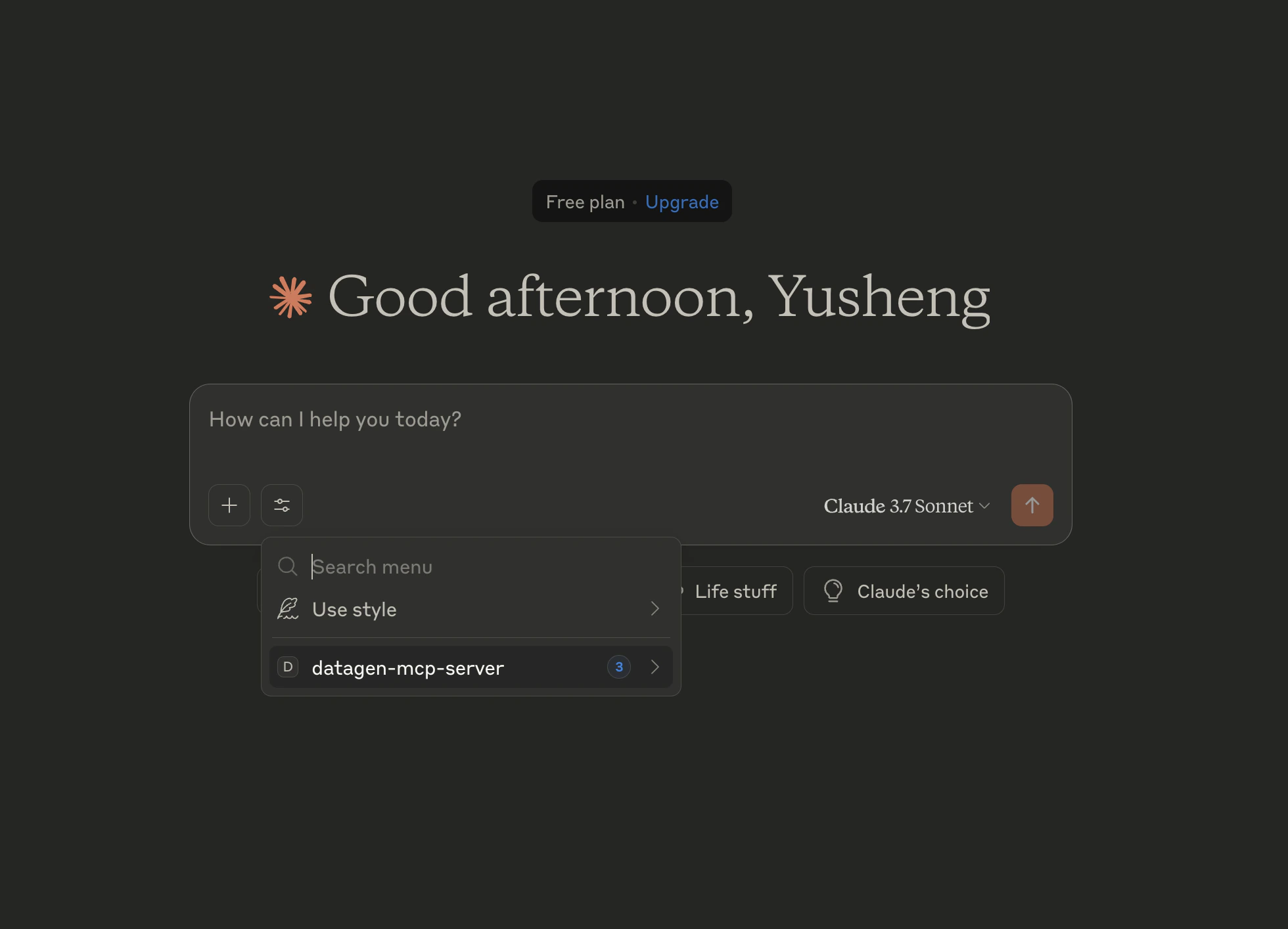 1. Open Cursor and go to MCP settings
2. Choose **Type**: "Command"
3. In the **Command** field, enter:
```
npx mcp-remote https://mcp.datagen.dev/mcp
```
***
## Verify Your Connection
Test your connection in any Claude interface:
Ask Claude: **"List all available DataGen tools"**
You should see tools like `executeCode`, `searchTools`, `addRemoteMcpServer`, and `createCustomTool`.
***
## Troubleshooting
1. Verify your JSON configuration is valid (use a JSON validator)
2. Ensure you restarted Claude Desktop after adding the config
3. Check that `npx` is installed and accessible in your terminal
4. Try running `datagen mcp` again to reconfigure
1. Check your internet connection
2. Verify the URL: `https://mcp.datagen.dev/mcp`
3. If behind a corporate firewall, contact your IT team about MCP access
1. Verify your API key is correct: `datagen login`
2. Some tools require OAuth authentication -- use `addRemoteMcpServer` to connect external services
1. Ensure you have curl installed: `which curl`
2. Try running with sudo: `sudo sh -c "$(curl -fsSL https://cli.datagen.dev/install.sh)"`
3. Manual install: Download from [GitHub releases](https://github.com/datagendev/datagen-cli/releases)
***
## Support
* **Community**: [Discord](https://discord.gg/6nfr4hh38r)
* **Email**: [support@datagen.dev](mailto:support@datagen.dev)
* **1:1 Onboarding**: [Book a session](https://cal.com/yusheng/datagen-on-board-1-1)
1. Open Cursor and go to MCP settings
2. Choose **Type**: "Command"
3. In the **Command** field, enter:
```
npx mcp-remote https://mcp.datagen.dev/mcp
```
***
## Verify Your Connection
Test your connection in any Claude interface:
Ask Claude: **"List all available DataGen tools"**
You should see tools like `executeCode`, `searchTools`, `addRemoteMcpServer`, and `createCustomTool`.
***
## Troubleshooting
1. Verify your JSON configuration is valid (use a JSON validator)
2. Ensure you restarted Claude Desktop after adding the config
3. Check that `npx` is installed and accessible in your terminal
4. Try running `datagen mcp` again to reconfigure
1. Check your internet connection
2. Verify the URL: `https://mcp.datagen.dev/mcp`
3. If behind a corporate firewall, contact your IT team about MCP access
1. Verify your API key is correct: `datagen login`
2. Some tools require OAuth authentication -- use `addRemoteMcpServer` to connect external services
1. Ensure you have curl installed: `which curl`
2. Try running with sudo: `sudo sh -c "$(curl -fsSL https://cli.datagen.dev/install.sh)"`
3. Manual install: Download from [GitHub releases](https://github.com/datagendev/datagen-cli/releases)
***
## Support
* **Community**: [Discord](https://discord.gg/6nfr4hh38r)
* **Email**: [support@datagen.dev](mailto:support@datagen.dev)
* **1:1 Onboarding**: [Book a session](https://cal.com/yusheng/datagen-on-board-1-1)