
Overview
DataGen can connect to external remote MCP servers to access services like Gmail, LinkedIn, Google Drive, and more. This enables powerful automation workflows that integrate multiple services seamlessly.Make sure you’ve completed the Add Datagen to Claude guide and have DataGen MCP connected to Claude Desktop before proceeding.
Step-by-Step Setup
Step 1: Add Remote MCP Server
In Claude, ask it to addMCP_You_Want with the MCP URL :
Example: Connect Linear MCP
Ask Claude:“Help me to add Linear MCP to DataGen, its URL is https://mcp.linear.app/sse”Or simply:“Add https://mcp.linear.app/sse to DataGen”Claude will first request permission to use the
addRemoteMcpServer tool. Once you allow this, Claude will respond with:- Confirmation that Linear MCP server is being added
- OAuth authentication link to authorize Linear access
- Instructions to complete authentication in your browser
Step 2: Complete OAuth Authentication
You’ll see a response like this:Claude Response Example
“I’ll help you add the Linear MCP server to DataGen. Let me add it using the provided URL.The Linear MCP server requires OAuth authentication. Please click on this link to authenticate:Authorize Linear MCPAfter you complete the OAuth authentication in your browser, I’ll check the status to confirm the connection is established.”
- Click the OAuth link provided by Claude
- Sign in to Linear in your browser
- Grant permissions to authorize DataGen access
- Wait for confirmation - Claude will automatically detect completion
Step 3: Automatic Connection Confirmation
Claude will automatically monitor the OAuth status and confirm when complete:Success Response
“Perfect! The Linear MCP server has been successfully added to your DataGen setup. The OAuth authentication completed successfully.Now you can use Linear tools in your DataGen workflows.”
Step 4: Discover Available Tools
Ask Claude to show you what tools are now available:Discover Tools
Ask Claude:“What Linear tools do I have access to now?”Claude will respond with something like:“Excellent! The Linear MCP server is now successfully connected and you have access to 25 Linear tools. Here’s what you can do with Linear in DataGen:Core Linear Operations:
- Issues: List, create, update, get details, add comments
- Projects: List, create, update, get details
- Teams: List teams and get team details
- Users: List users and get user details
- Documents: List and retrieve Linear documents
mcp_Linear_list_issues- List issues with filtering optionsmcp_Linear_create_issue- Create new issuesmcp_Linear_update_issue- Update existing issuesmcp_Linear_list_projects- List projectsmcp_Linear_create_project- Create new projects*“
Alternative: Add MCP via DataGen UI
You can also add MCP servers directly through the DataGen web interface without using Claude.Step 1: Go to MCP Servers Page
Navigate to MCP Servers in the DataGen sidebar. You’ll see your connected MCP servers.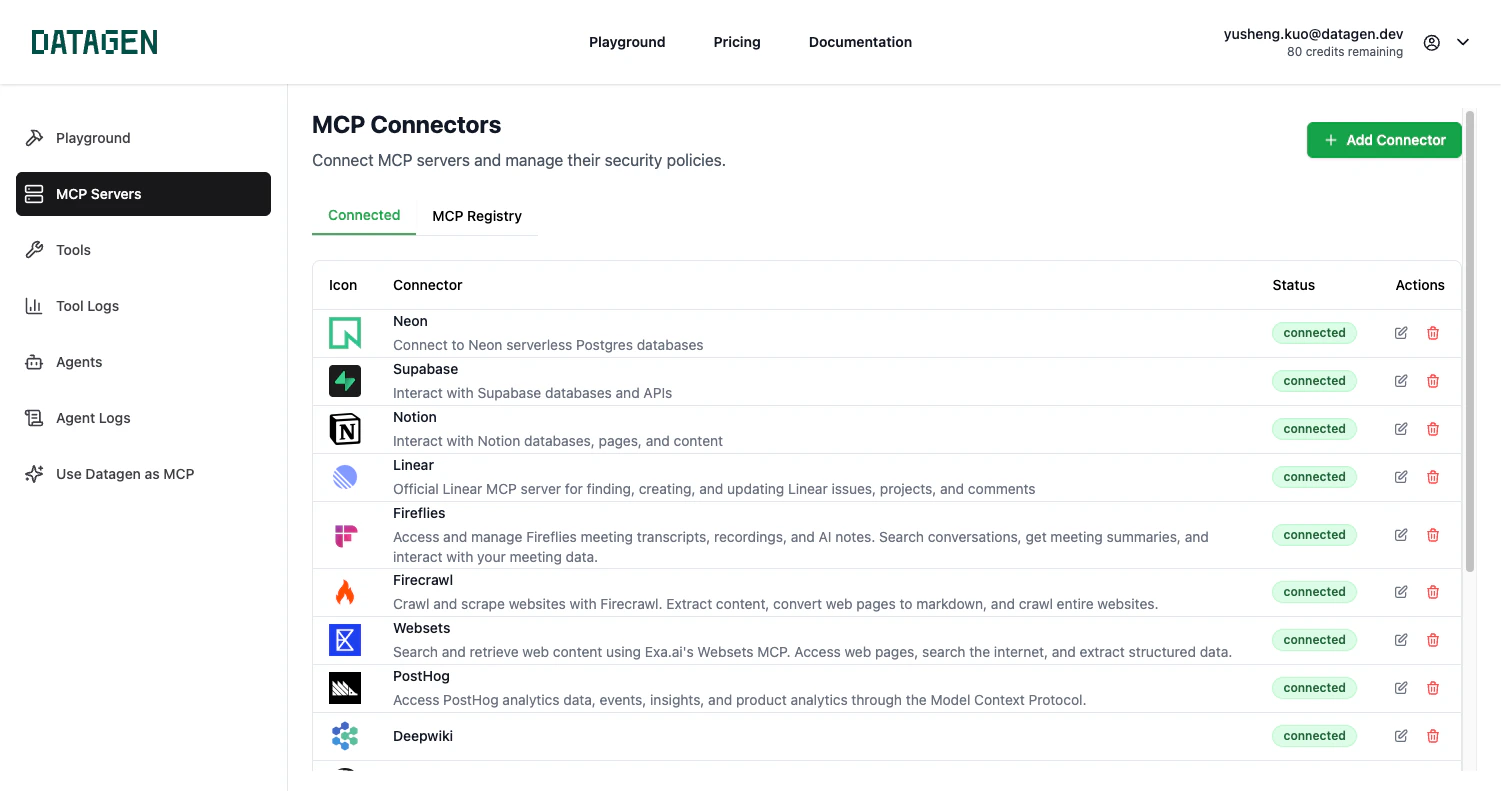
Step 2: Browse the MCP Registry
Click the MCP Registry tab to see available MCP servers you can connect with one click.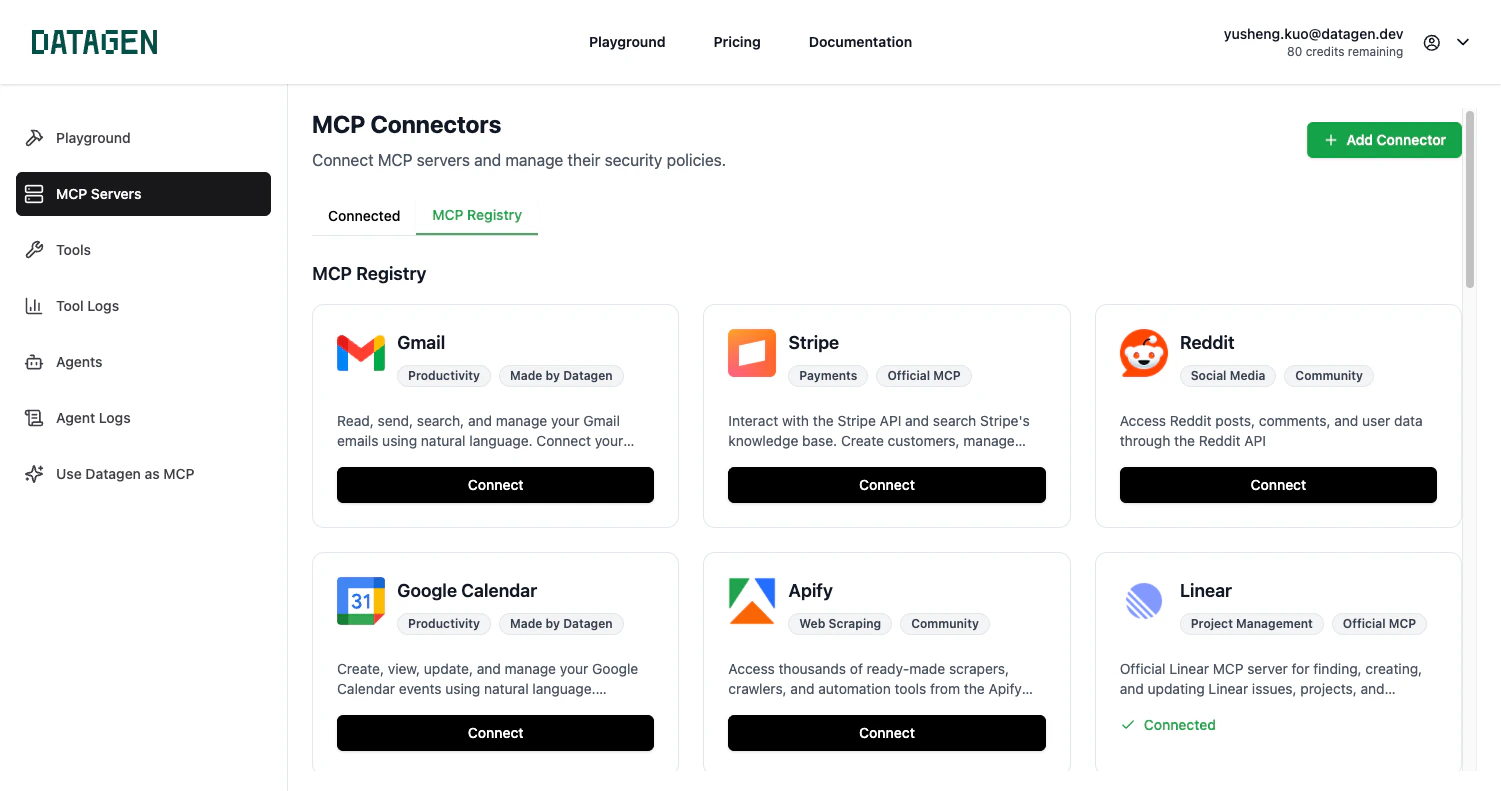
Step 3: Add Custom MCP Server
For servers not in the registry, click Add Connector to add any MCP server manually.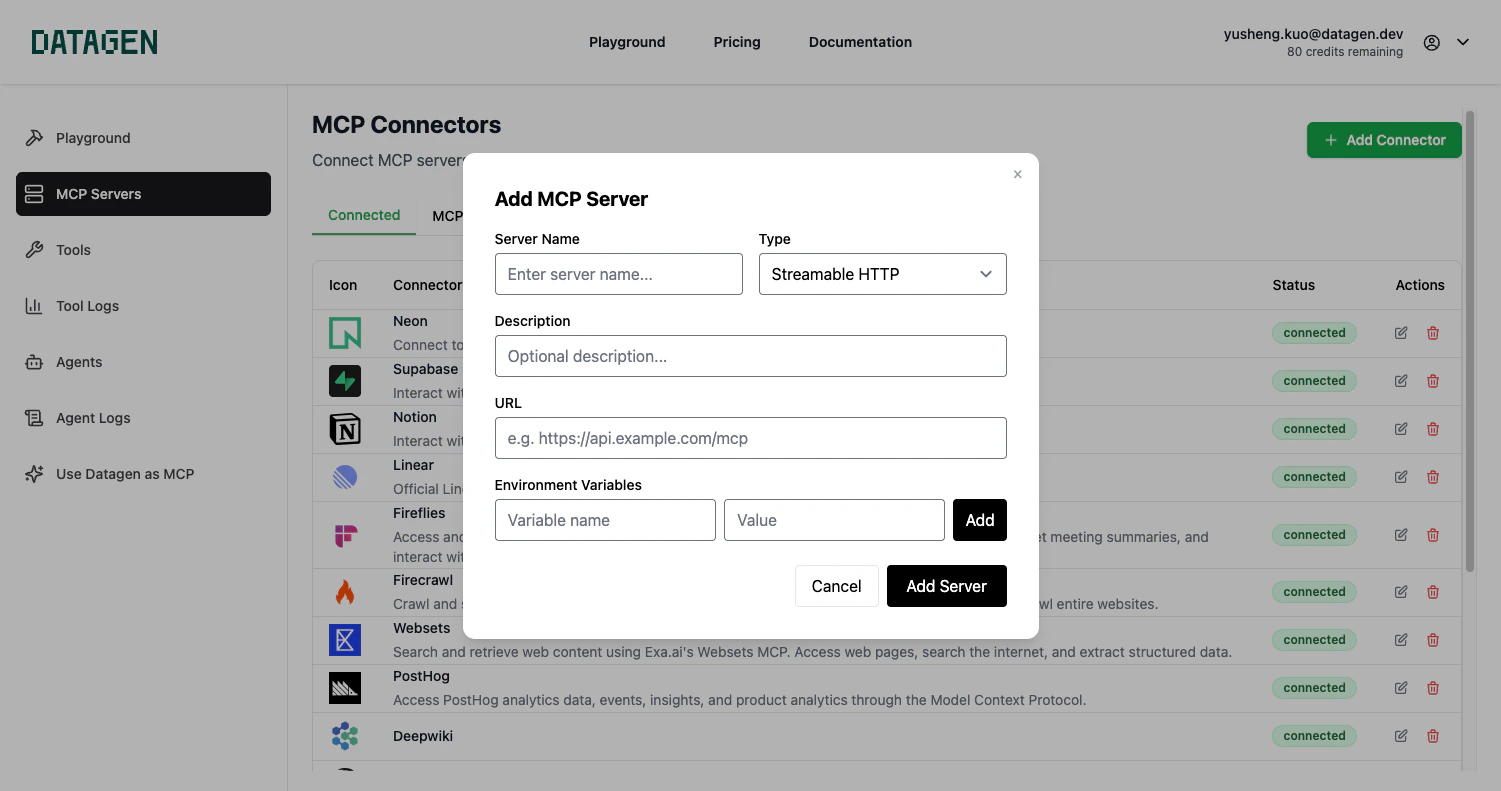
- Server Name: A display name (e.g., “Linear”, “Gmail”)
- Type: Choose the transport method:
- Streamable HTTP - Most common for remote MCP servers
- Server-Sent Events (SSE) - For servers using SSE transport
- Standard IO (STDIO) - For local MCP servers
- URL: The MCP server endpoint URL
- Environment Variables: Optional variables the server needs
How MCP Server Integration Works
- Initiate Connection: Use
addRemoteMcpServerto connect external services - OAuth Authentication: Complete authentication in your browser
- Monitor Status: Use
checkRemoteMcpOauthStatusto confirm connection - Discover Tools: Use
searchToolsto find available automation tools
Commonly Used MCPs
1. Official Remote MCP Servers
These services provide official MCP servers that you can connect directly:- Notion - https://mcp.notion.com/mcp - Famous workspace integration, content management, and database operations
- Linear - https://mcp.linear.app/sse - Popular issue tracking, project management, and team collaboration
- Neon - https://mcp.neon.tech - Cloud Postgres database management, queries, and migrations with OAuth authentication
2. Common MCP Tool Providers
Composio.dev - 300+ App Integrations
Composio.dev - 300+ App Integrations
URL: https://mcp.composio.dev/Composio provides 300+ app integrations with built-in authentication:
Important: When using Composio MCP servers, choose HTTP for the remote URL transport method.
- Gmail - https://mcp.composio.dev/gmail - Email management, drafts, labels, and message filtering with 24+ tools
- Outlook - https://mcp.composio.dev/outlook - Microsoft email and calendaring platform with 43+ tools
- Dropbox - https://mcp.composio.dev/dropbox - Cloud storage and file management with 11+ tools
Klavis.ai - SOC 2 Compliant Servers
Klavis.ai - SOC 2 Compliant Servers
URL: https://www.klavis.ai/Production-ready, SOC 2 compliant MCP servers with hosted authentication:
- Gmail - https://www.klavis.ai/mcp-server-connections/gmail - Professional email automation
- GitHub - https://www.klavis.ai/mcp-server-connections/github - Repository and issue management
- Slack - https://www.klavis.ai/mcp-server-connections/slack - Team communication automation
- Jira - https://www.klavis.ai/mcp-server-connections/jira - Project and issue tracking
- Google Drive - https://www.klavis.ai/mcp-server-connections/google-drive - Cloud file management
Smithery.ai - Open Marketplace
Smithery.ai - Open Marketplace
URL: https://smithery.ai/The largest open marketplace with 6,835+ MCP skills and extensions:
- Registry Platform - Discover, install, and manage MCP servers
- Both Local & Hosted - Choose between self-hosted or Smithery-hosted options
- Popular Servers - AWS S3, GitHub, Google Drive, Slack, BigQuery, MongoDB, and more
3. Community & Custom MCPs
- Open Source Servers - https://github.com/modelcontextprotocol/servers - Official MCP servers repository with reference implementations
- Custom Integrations - Use MCP SDK to create custom integrations for proprietary systems and specialized tools
Detailed Integration Examples
Gmail Integration
LinkedIn Integration
Google Drive Integration
Managing Multiple MCP Connections
View Connected Services
List Connections
Ask Claude:“Show me all connected MCP servers and their available tools”This will display your current integrations and their status.
Reconnect Expired Services
Some OAuth tokens expire and need renewal:- Check Status: Use
checkRemoteMcpOauthStatusto identify expired connections - Reconnect: Use
reauthRemoteMcpServerfor the same service - Update Workflows: Existing workflows will automatically use refreshed tokens
Troubleshooting
OAuth flow fails or times out
OAuth flow fails or times out
Common solutions:
- Clear your browser cookies for the OAuth provider
- Try using an incognito/private browser window
- Check if your organization blocks OAuth for the service
- Ensure pop-ups are allowed for the authentication domain
- Try the OAuth flow again with a fresh
flow_id
Permission denied errors
Permission denied errors
Check permissions:
- Verify you granted all required permissions during OAuth
- Some services require admin approval for certain scopes
- Check if your account has access to the requested resources
- Re-run the OAuth flow if permissions were insufficient
Tools not appearing after OAuth
Tools not appearing after OAuth
Troubleshooting steps:
- Wait 1-2 minutes for MCP server synchronization
- Use
searchToolsto discover newly available tools - Check
checkRemoteMcpOauthStatusshows “completed” status - Restart Claude Desktop if tools still don’t appear
Connection lost during workflow
Connection lost during workflow
Recovery options:
- Check if OAuth token expired using status check
- Re-authenticate if token is expired
- Implement error handling in your workflows
- Use try/catch blocks around MCP tool calls
Best Practices
Security Considerations
OAuth Security
- Only connect services you actively use
- Regularly review connected applications in service settings
- Use dedicated service accounts for automation when possible
- Monitor OAuth token usage and expiration
Workflow Design
Robust Workflows
- Always check tool availability before use
- Implement error handling for API failures
- Use rate limiting to avoid service throttling
- Cache frequently accessed data to reduce API calls
Performance Optimization
Efficient Integration
- Batch API calls when possible
- Use webhooks instead of polling where available
- Implement proper retry logic with exponential backoff
- Monitor API quotas and usage limits
How to Add MCP to Your Agent
The DataGen MCP Gateway acts as a unified bridge for MCP tools. When you connect an MCP server through DataGen, the tools become available in two places simultaneously:- Local Claude Code - Use tools directly in your Claude Desktop/Code conversations
- Deployed Agents - Your custom tools and deployments can also access the same MCP tools
Step 1: Add MCP to DataGen (One-Time Setup)
Use Claude Code or Claude Desktop to add the MCP server:- Call
addRemoteMcpServerto register the server - Provide an OAuth link for authentication
- Monitor
checkRemoteMcpOauthStatusuntil complete
Step 2: Use in Claude Code (Local Development)
After setup, you can use the MCP tools directly in conversations:Step 3: Use in Deployed Agents (Production)
Your deployed custom tools can access MCP tools that you’ve already connected to DataGen. When writing code for deployment:If you try to use an MCP tool that hasn’t been added to DataGen, you’ll receive an error. Always verify the MCP connection exists by testing in Claude Code first.
Why This Matters
Single Authentication
Authenticate once with DataGen, use everywhere. No need to manage OAuth tokens in each deployment.
Consistent Access
Same tools, same permissions in development and production. What works locally works when deployed.
Centralized Management
Manage all MCP connections in one place. Reconnect expired tokens once, all agents get updated.
Faster Development
Prototype in Claude Code, deploy to production. No configuration changes needed.
Example: End-to-End Workflow
1. Add MCP servers in Claude Code:What’s Next?
Build Workflows
Start building automation workflows with your connected services
Deploy & Schedule
Turn your workflows into production APIs and scheduled jobs